Watch JioHotstar on your phone with fewer interruptions and less wasted data
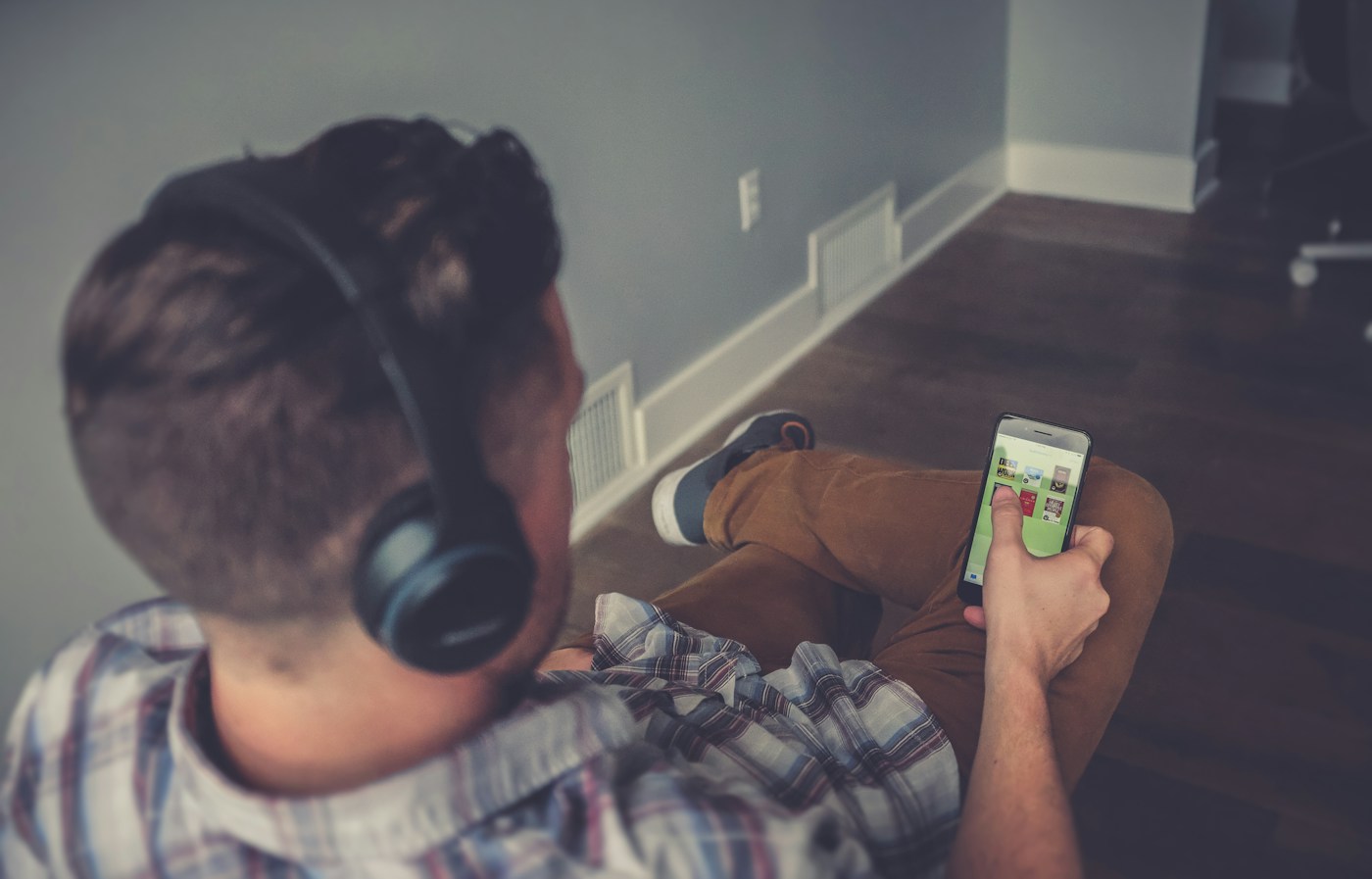
A good mobile session is not just about choosing the highest picture setting. A small screen, limited data allowance, weak signal and an unexpected audio output can each spoil the experience. Set up the parts you can control before starting a long programme.
Start with your constraint: limited data, unstable connection, distracting notifications or uncomfortable controls. Choose settings to address that constraint instead of maximising every option.
Choose the connection deliberately
Check whether the phone is actually using Wi-Fi or mobile data. A Wi-Fi icon does not tell you how stable the connection is at your seat. Try a short playback session in the same location you plan to watch, rather than testing beside the router and then moving away.
If mobile data is limited, inspect the player’s available quality options and your phone’s usage screen. Do not assume a plan name fixes one data-consumption rate: the actual delivery can vary with the title, settings and playback conditions.
Estimate data, then measure your own session
A useful conversion is approximately 450 MB per hour for each sustained 1 Mbps of video data, before additional overhead. It follows from bits-to-bytes arithmetic; it is not a measured JioHotstar bitrate. A sustained 2 Mbps would therefore be roughly 900 MB an hour before overhead.
For a practical check, note the app’s mobile-data total in Android settings, play a short representative segment, and inspect the change. Avoid unrelated downloads during the test. Scaling a ten-minute sample by six provides a rough hourly estimate, not a guarantee for every programme.
| Constraint | Useful adjustment | Check the result |
|---|---|---|
| Limited data | Choose a lower available quality and avoid unnecessary replay. | Compare the app’s recorded data usage. |
| Unstable Wi-Fi | Compare another position or permitted connection. | Observe whether interruptions reduce. |
| Hard-to-read subtitles | Review available language/display controls and phone position. | Check a dialogue-heavy scene. |
| Unexpected audio output | Inspect Bluetooth/headphone routing and player mute. | Verify where sound is actually playing. |
Arrange the screen and controls
Use a stable support if you do not want to hold the phone for the full programme. Set brightness for the surroundings, check the selected language and enable available subtitles if you need them. Review audio at a sensible volume before the loudest scene starts.
If notifications are the main interruption, inspect the phone’s quiet-mode options and the exceptions you need for important people. Test those choices separately; changing call handling and streaming settings at the same time makes it difficult to know which adjustment caused a problem.
Check downloads before relying on them
If your title, plan and app offer a download option, inspect its storage requirement and any expiry information shown. Start the downloaded item as a check before leaving a reliable connection. The presence of a download button on one programme does not establish availability for every title.
Do not assume clearing app data or reinstalling preserves downloaded content. Keep account access available before using those troubleshooting steps. When travelling, check the service’s access conditions for your destination; downloading is not a promise that geographical restrictions disappear.
If the session becomes unreliable
- Record whether the issue is loading, a crash, missing audio or an access message.
- Try another title to distinguish a content-specific issue.
- Check the active connection and any large background transfer you control.
- Change one available quality setting and observe the result.
- Restart the app or device at a suitable break if necessary.
If the phone is unusually hot or displays a temperature warning, pause and follow the device manufacturer’s guidance. Avoid treating repeated problems as a reason to install an unofficial app. A useful mobile setup is the one that fits your actual data, device and viewing needs.
Original editorial viewing and measurement method, reviewed 26 October 2026. Device maintenance and notification concepts checked against Google Android Help; feature availability remains title- and plan-dependent.